
Here is the easiest way to delete all your bookmarks in Chrome.
We’re all a little guilty of letting our laptops pile up with useless information, and our bookmark pages can be great examples of that.
It’s easy to let your bookmarks get overcrowded, with links to old holiday destinations or various bus routes sitting in your bookmarks bar for months on end, taking up valuable space that could be better used on other things.
That’s why we created this guide, so you know the easiest way to delete all of your bookmarks, which thankfully only takes a few minutes. So, without further ado, read on to find out how you can clear your bookmarks in Chrome.
What we used
- We used a Dell XPS 13 OLED (2021) running Windows 11 and Chrome, though this will work on any device that runs Chrome
The Short Version
- Open Chrome
- Click on the hamburger menu
- Click on Bookmarks
- Click Bookmarks manager
- Select a bookmark
- Select all bookmarks
- Click on the hamburger menu
- Press Delete
-
Step
1Open Chrome
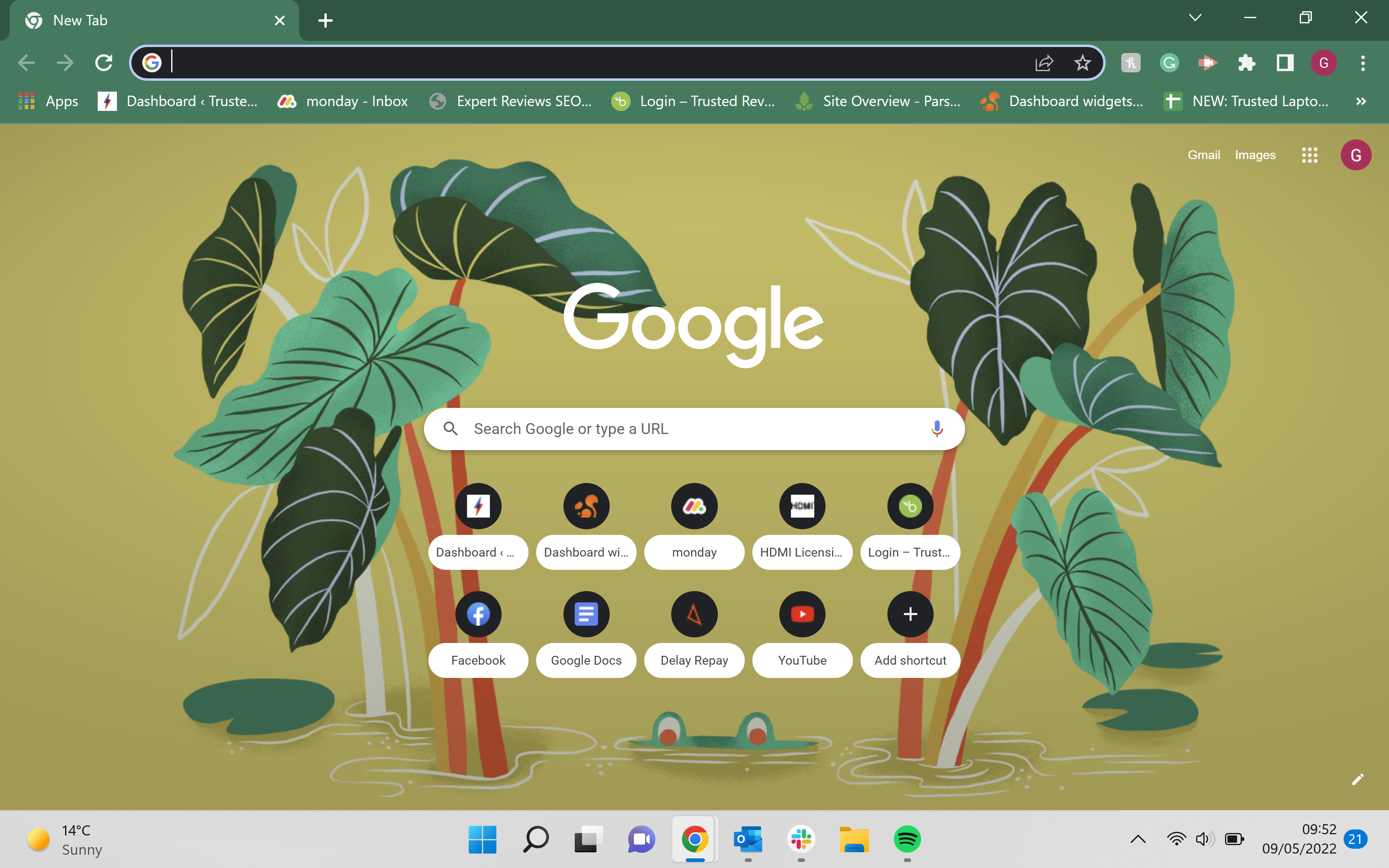
Open up Chrome and make sure that you are logged into the correct account.
-
Step
2Click on the hamburger menu
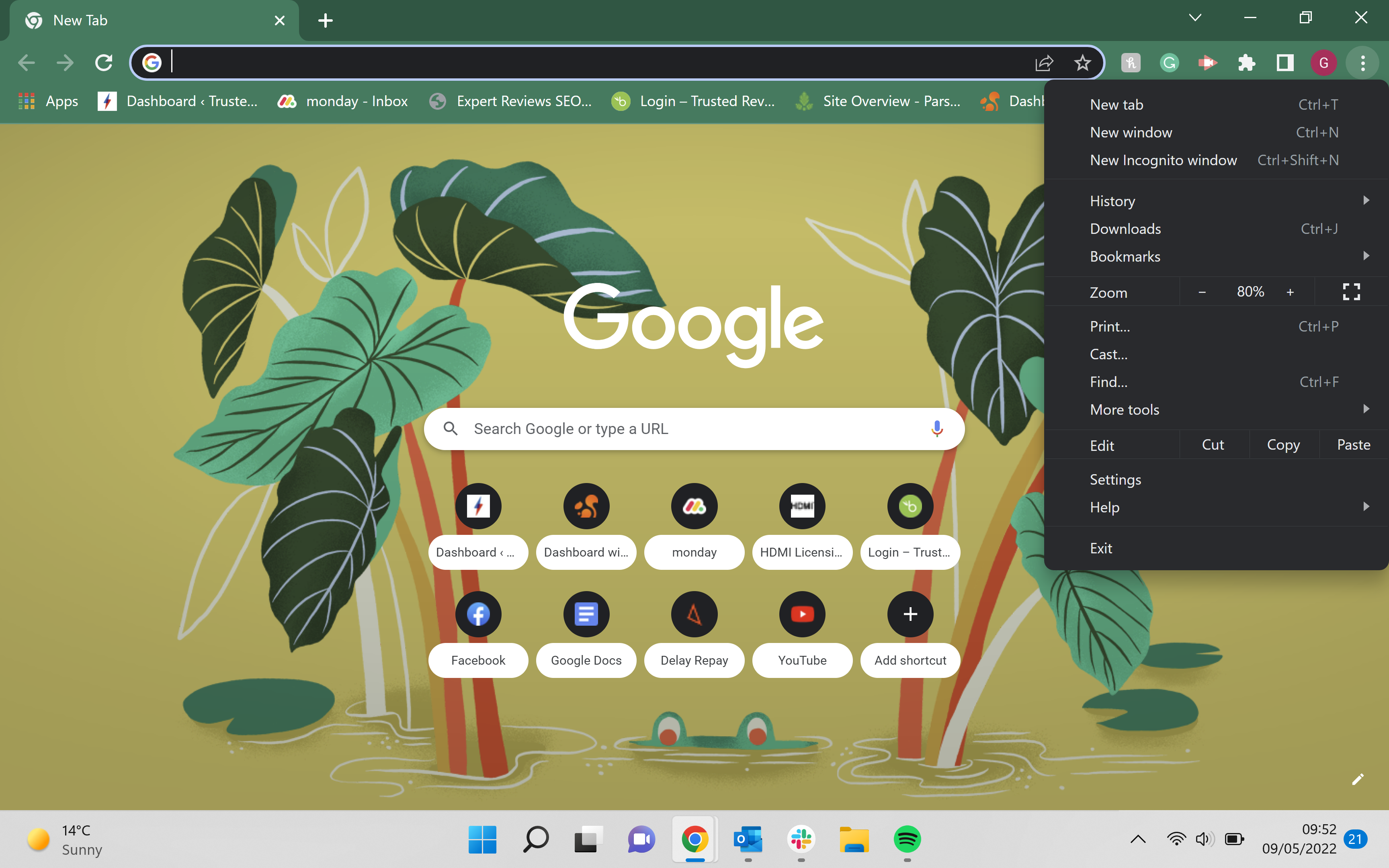
Click on the three small dots in the right-hand corner of the screen.
-
Step
3Click on Bookmarks
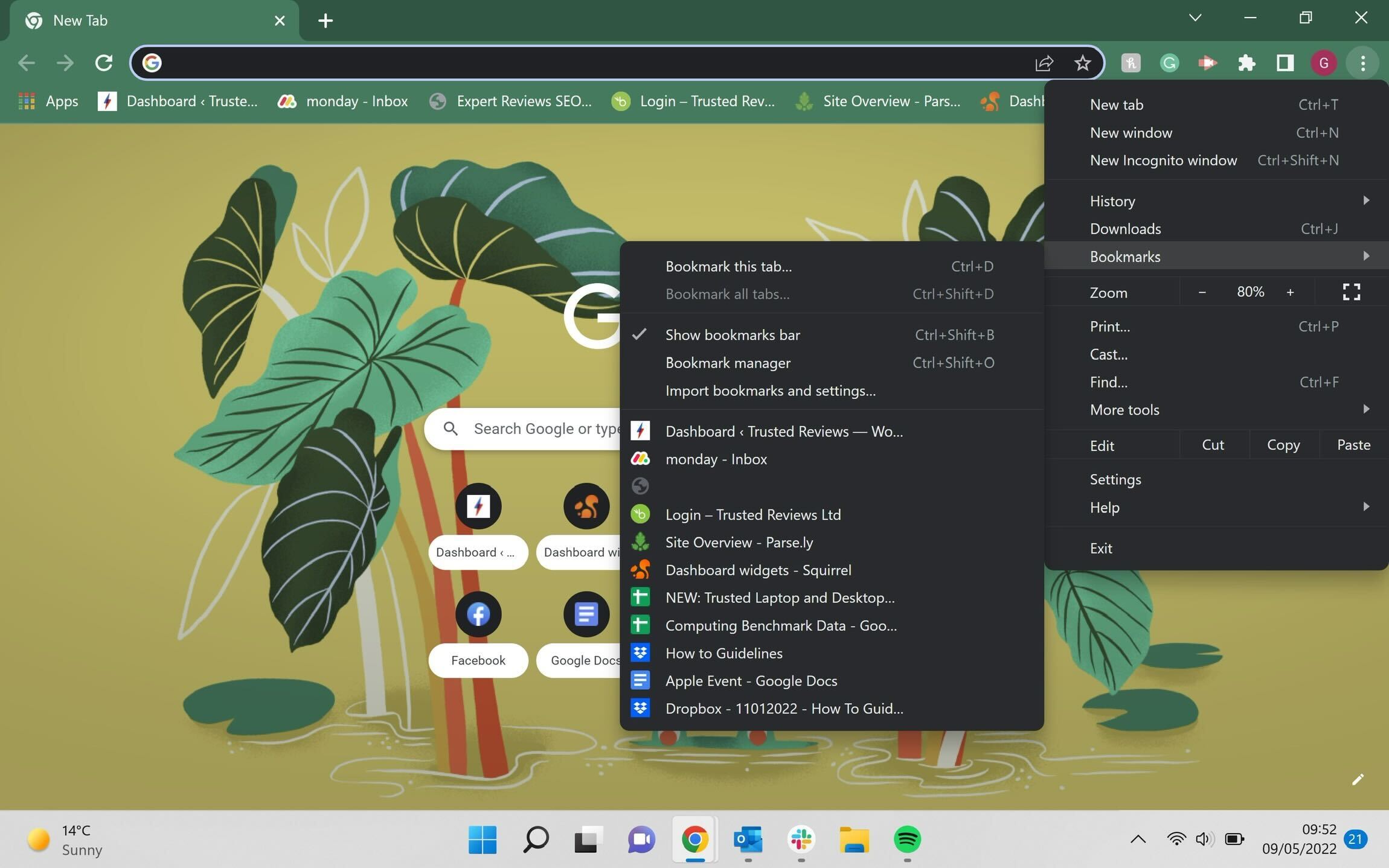
From the drop-down menu, click on Bookmarks.
-
Step
4Click on Bookmarks manager
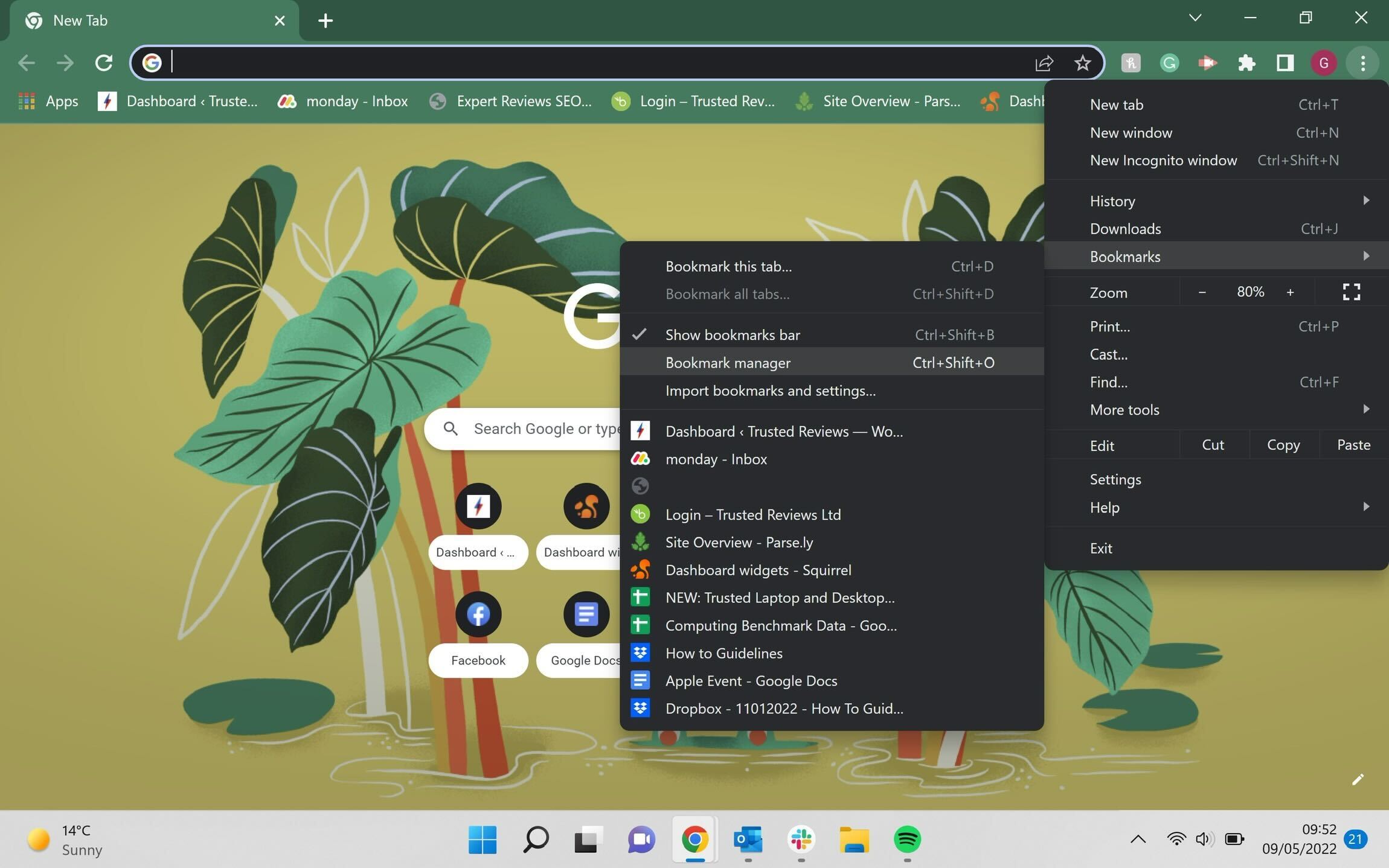
Once you click on Bookmarks, a new, smaller drop-down menu will appear. From this menu, click on the option that says Bookmarks manager.
-
Step
5Select a bookmark
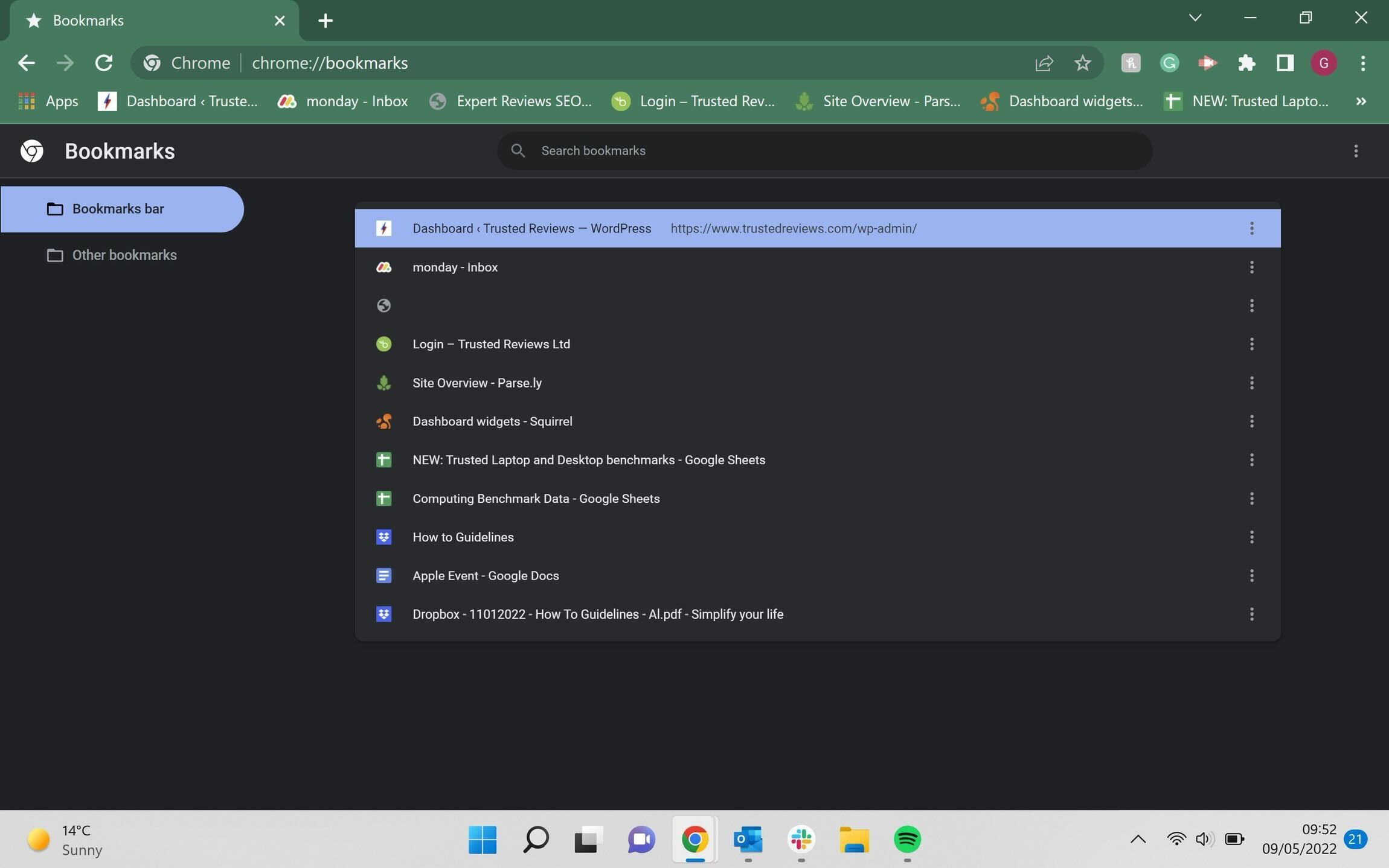
Select a bookmark, ideally the first or last bookmark on the list.
-
Step
6Select all bookmarks
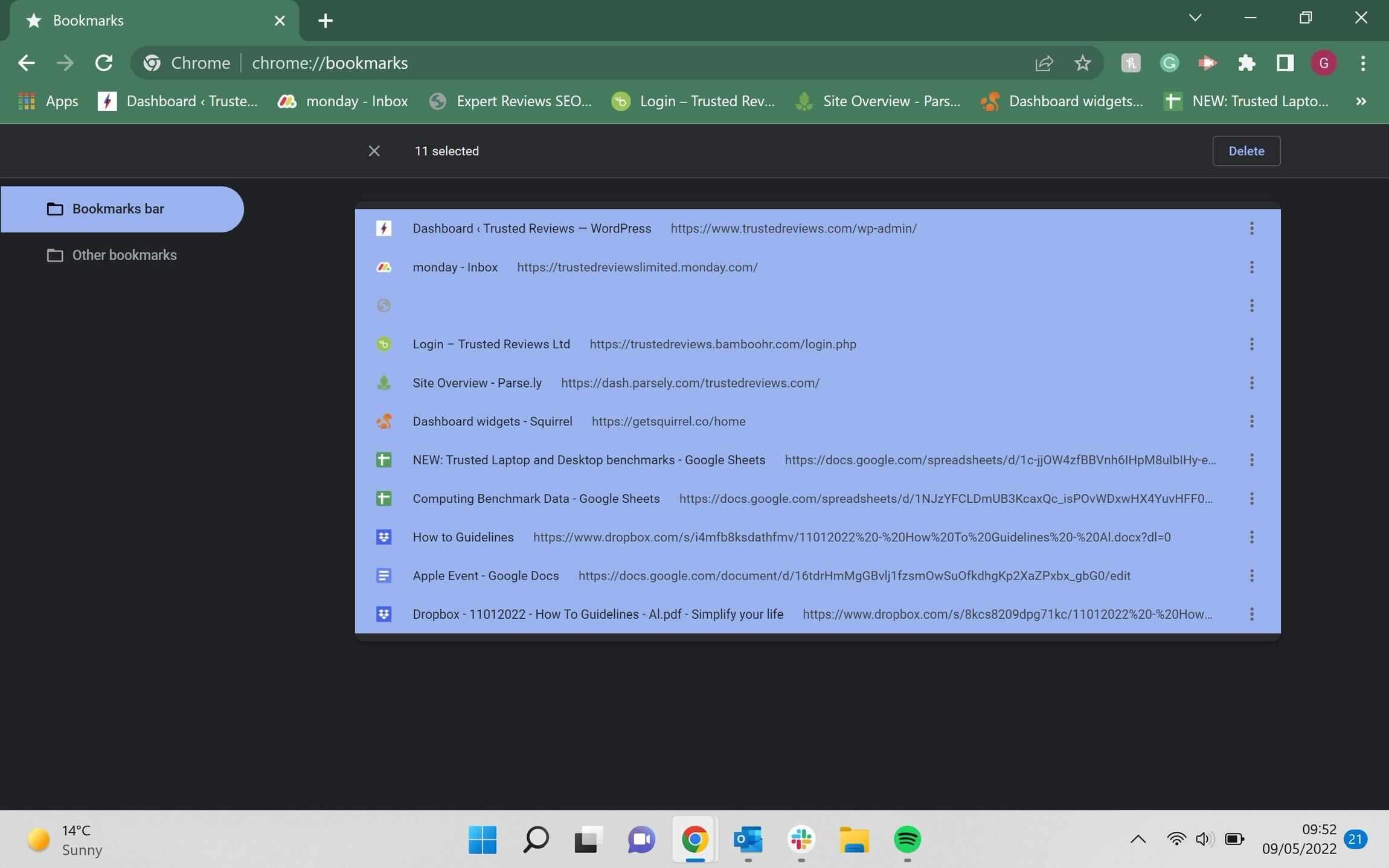
Once you have selected a bookmark, hold down the Shift button on your keyboard and then select all the other bookmarks on the page. You will know that they are all selected as they will all turn a different colour.
-
Step
7Click on the hamburger menu
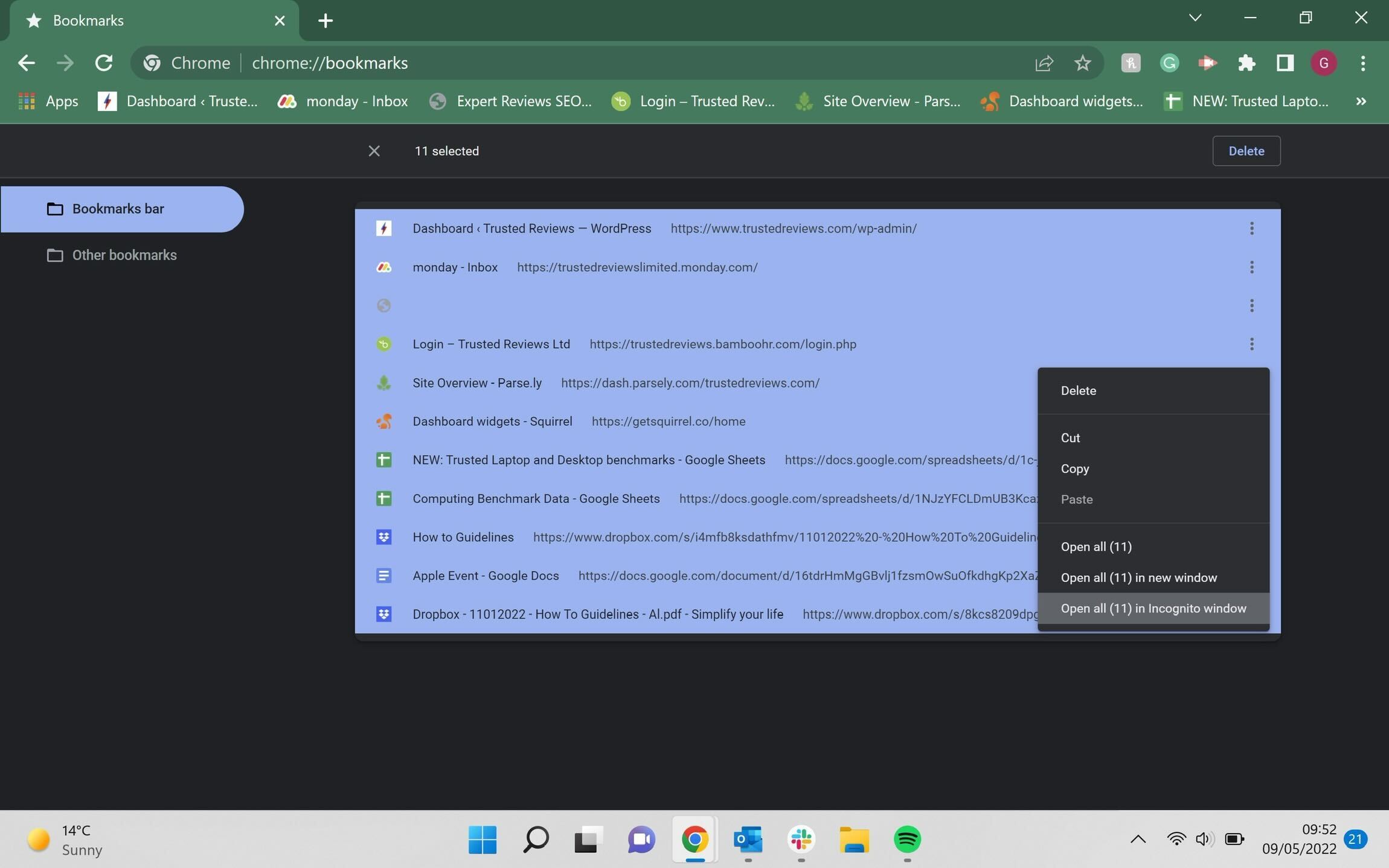
Once you have selected all the bookmarks, click on the hamburger menu on any of the bookmarks, it sits on the right-hand side of the screen. You only need to do this on one of the bookmarks, and it won’t matter which you choose as long as it’s been selected alongside the others.
-
Step
8Press Delete
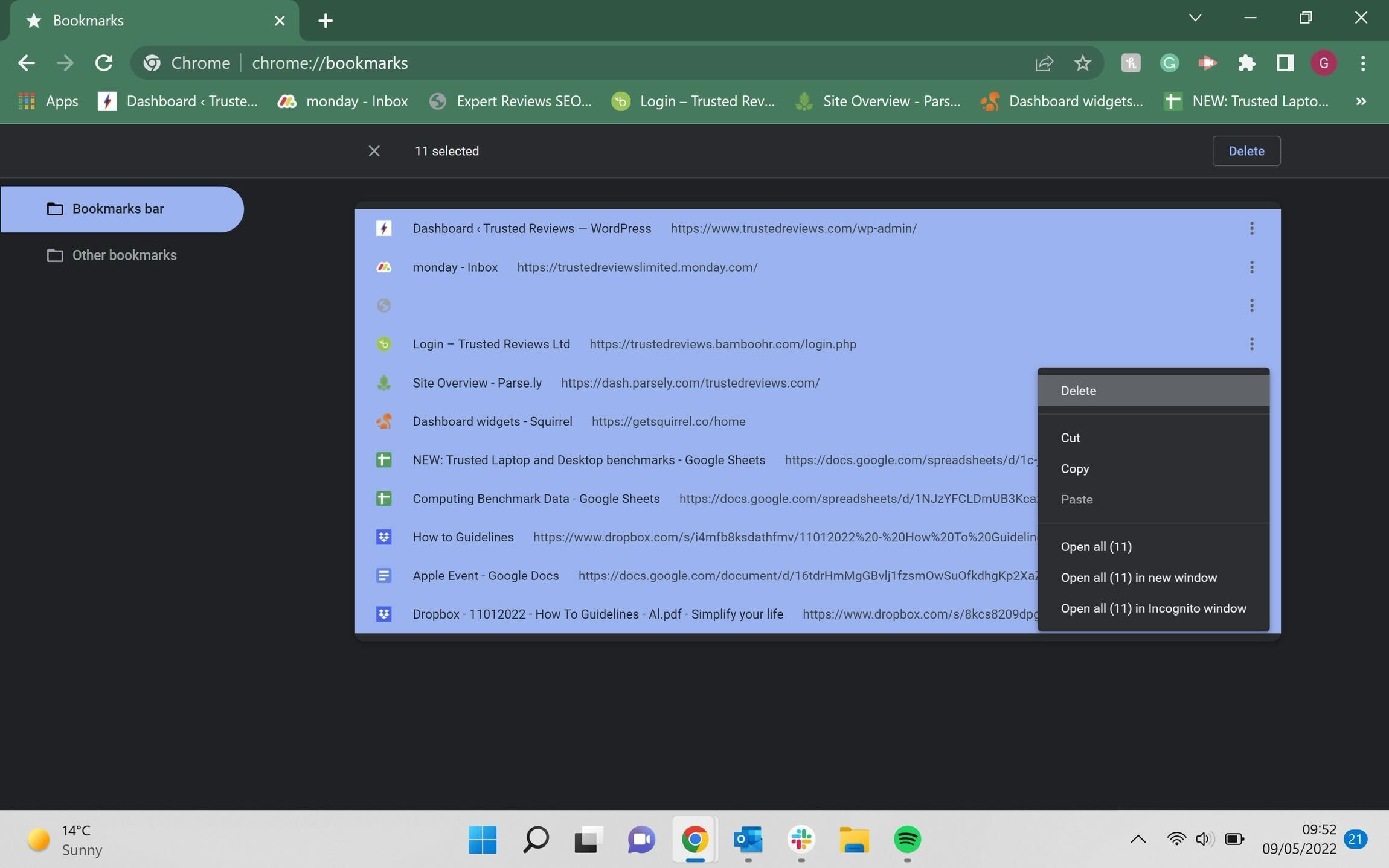
Click on the Delete button from the small drop-down menu that is shown below to delete all your bookmarks in Chrome.
FAQs
There is technically no limit on the number of bookmarks that you can have in Chrome, though we wouldn’t recommend storing too many, as eventually, it may take on a toll on the speed times of your device when running Chrome.
You may have a bookmarks bar in Chrome, which sits just under the tabs. You can also find your bookmarks by clicking on the hamburger menu in Chrome, then clicking on Bookmarks and then Bookmark Manager.
You might like…
The post How to delete all bookmarks from Chrome appeared first on Trusted Reviews.
from Trusted Reviews https://ift.tt/xvLmYgu
via IFTTT