
Noticed that no-one is sharing your Facebook posts? It might be because you’ve restricted who can see them. We’ve put together this guide to teach you how to make your posts sharable on Facebook.
There’s one tool responsible for ensuring your Facebook posts reach the right people and that is the audience selector. The audience selector controls who can see your statuses and photos both before and after you post them, as well as some of the information found on your profile you might want to keep private, such as your email address.
You can use the audience selector to choose who can see and share individual posts on your phone, tablet or laptop, but beware that you can’t change the audience on any posts you share on your friend’s or family’s timeline as this is in their control.
Read on to learn how to make your posts shareable after you post them or scroll to the bottom of this page to find out how to do it before hitting send…
What you’ll need:
- A Facebook account
- A post to share
The Short Version
- Find your post
- Click the three dots
- Click Edit Audience
- Click Public
How to make a post shareable on Facebook
-
Step
1Open Facebook
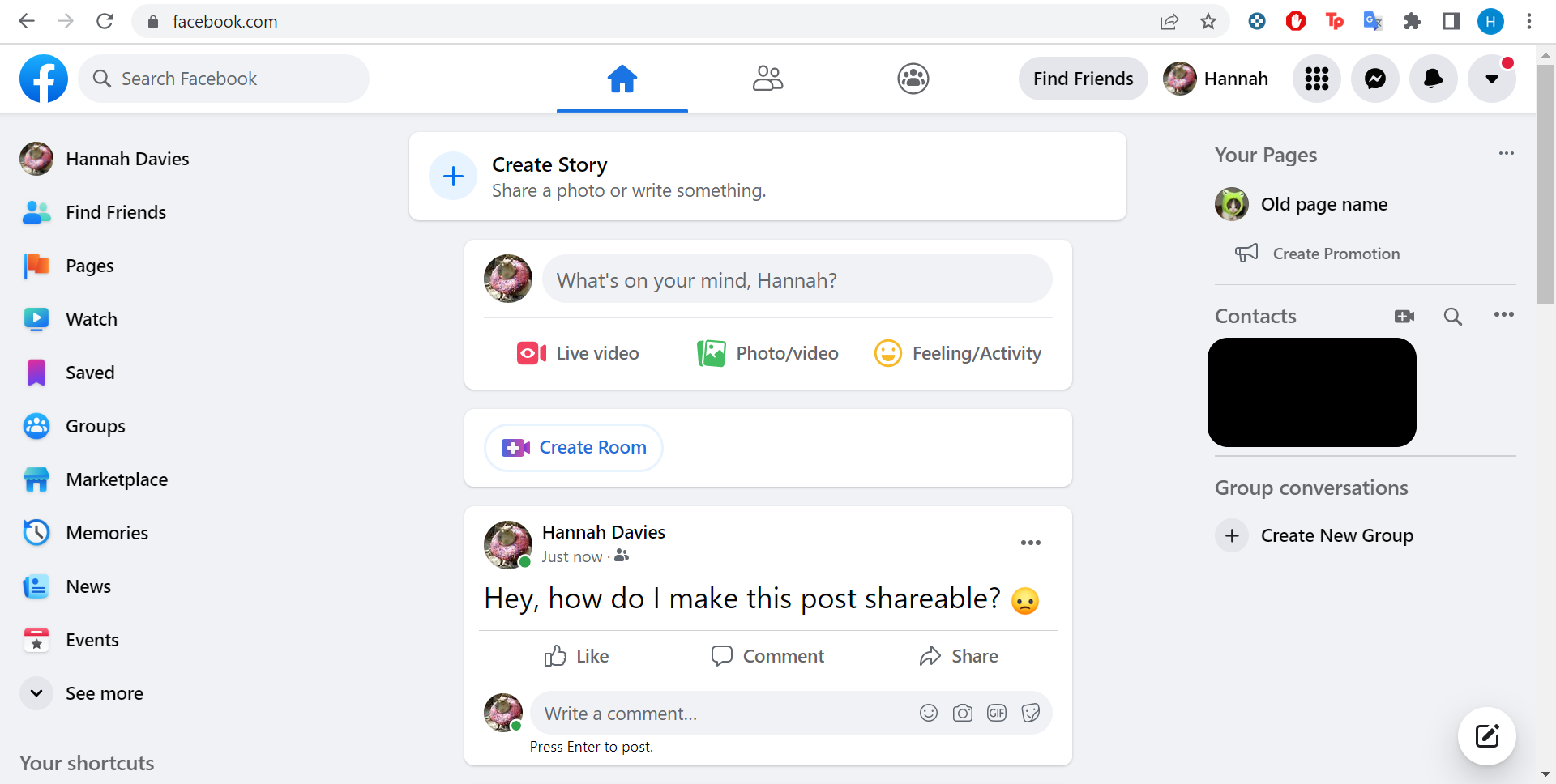
The following screenshots are from the browser version of Facebook, but you can also do this in the Android and iOS apps.
-
Step
2Find the post you want to edit
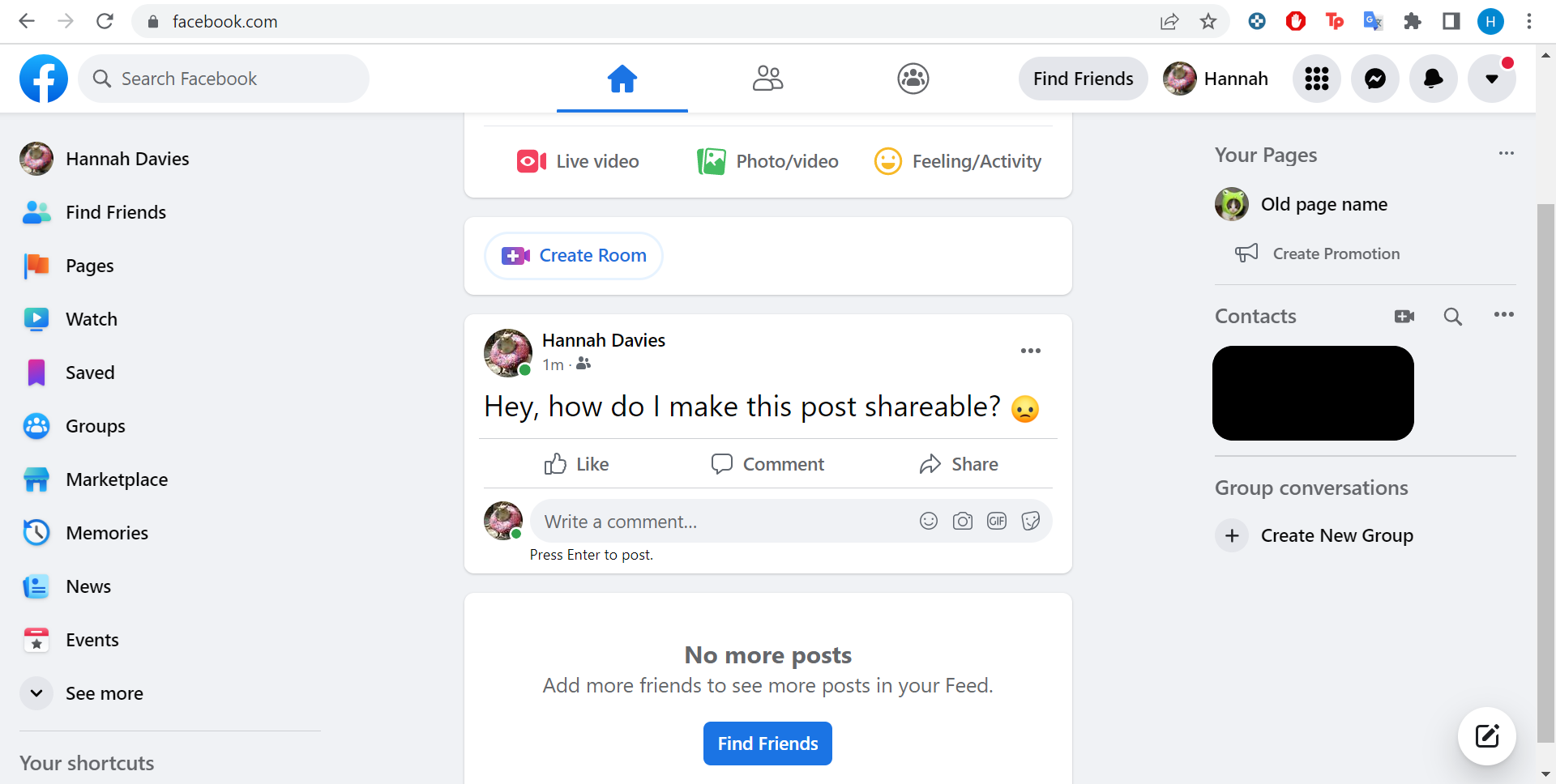
If it isn’t on your home feed, you can head to your profile and follow these steps from there.
-
Step
3Click the three dots in the corner of the post
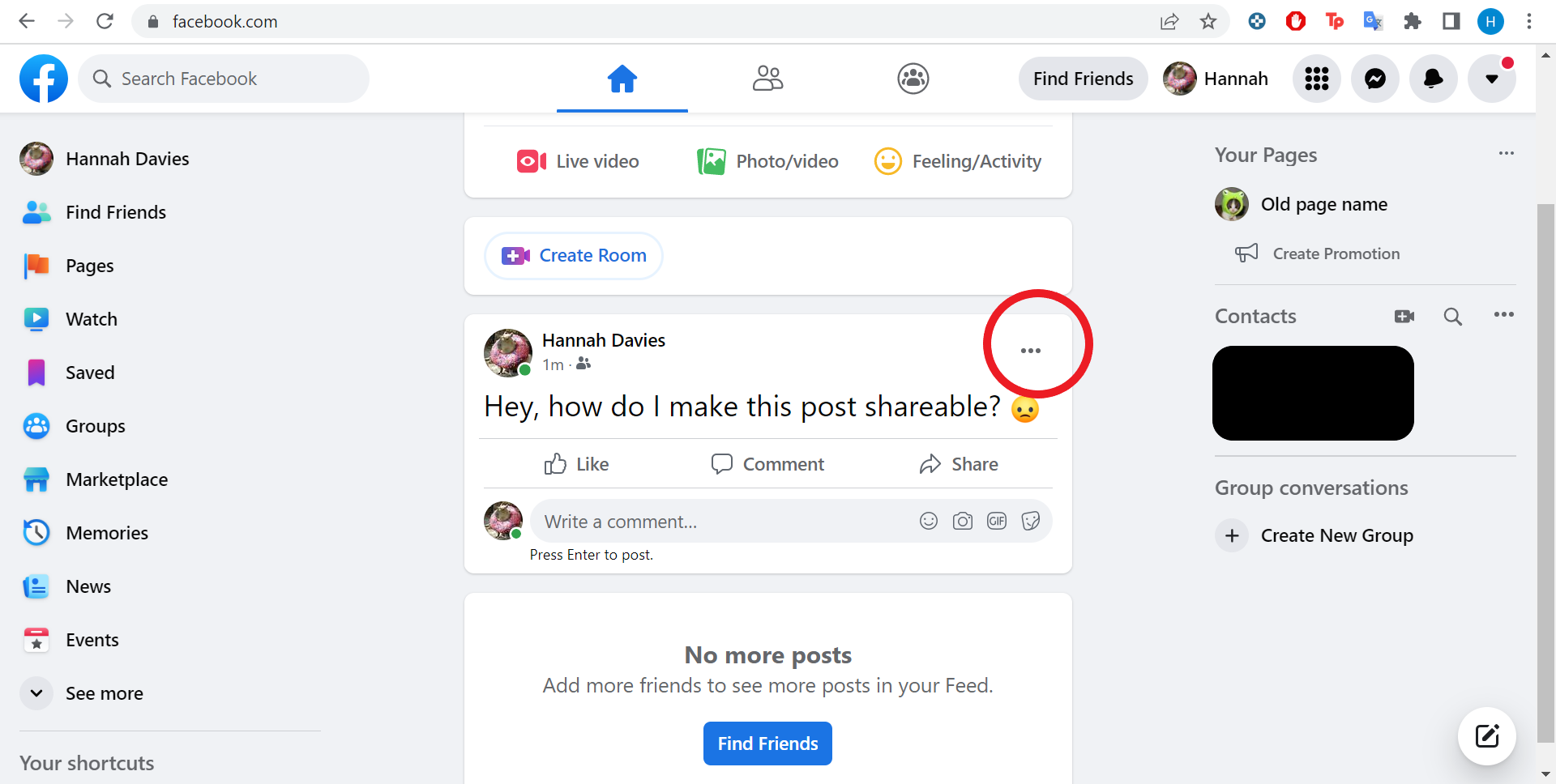
This will bring up a drop-down menu.
-
Step
4Click Edit Audience
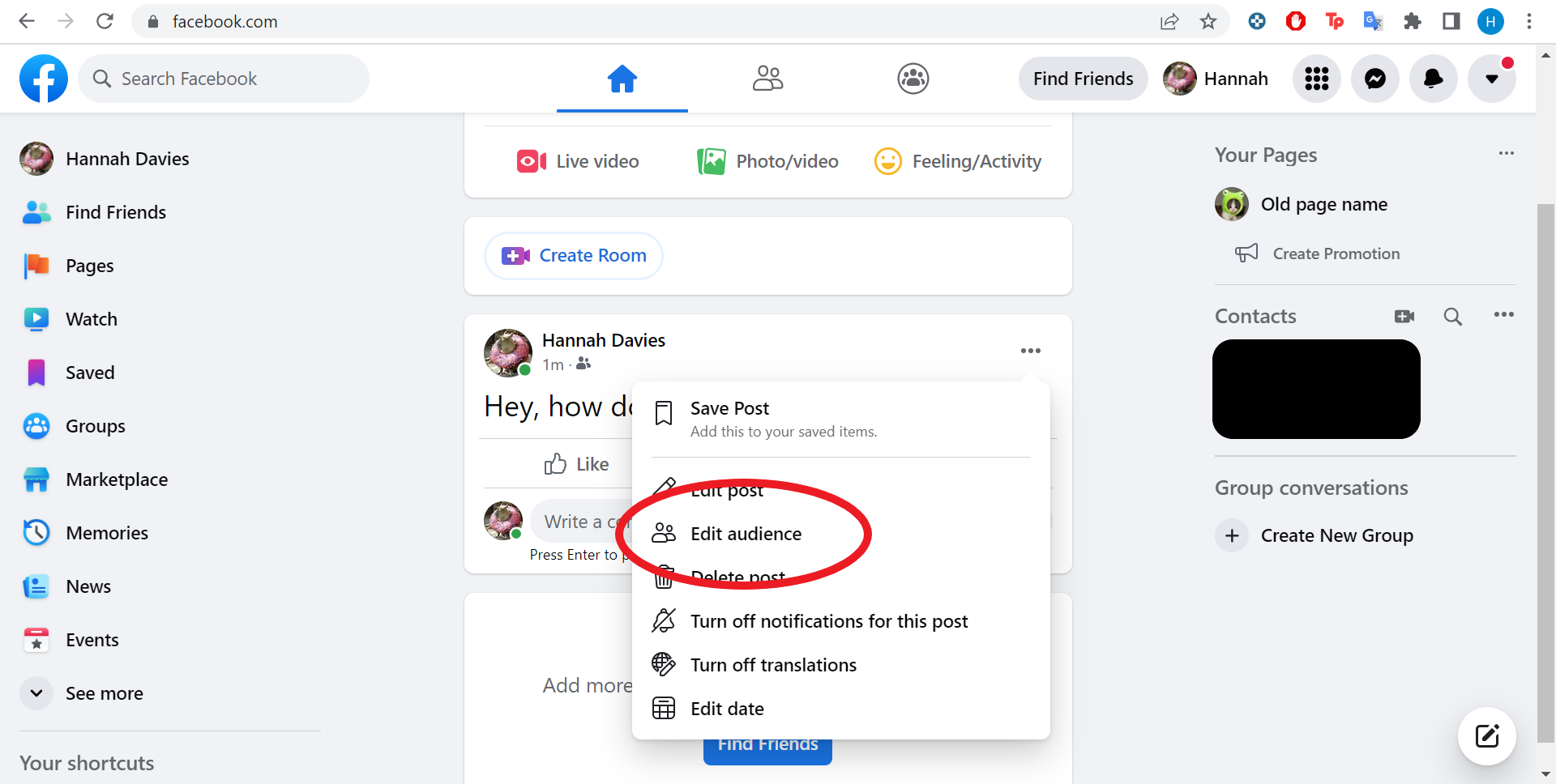
The icon looks like two people.
-
Step
5Choose Public
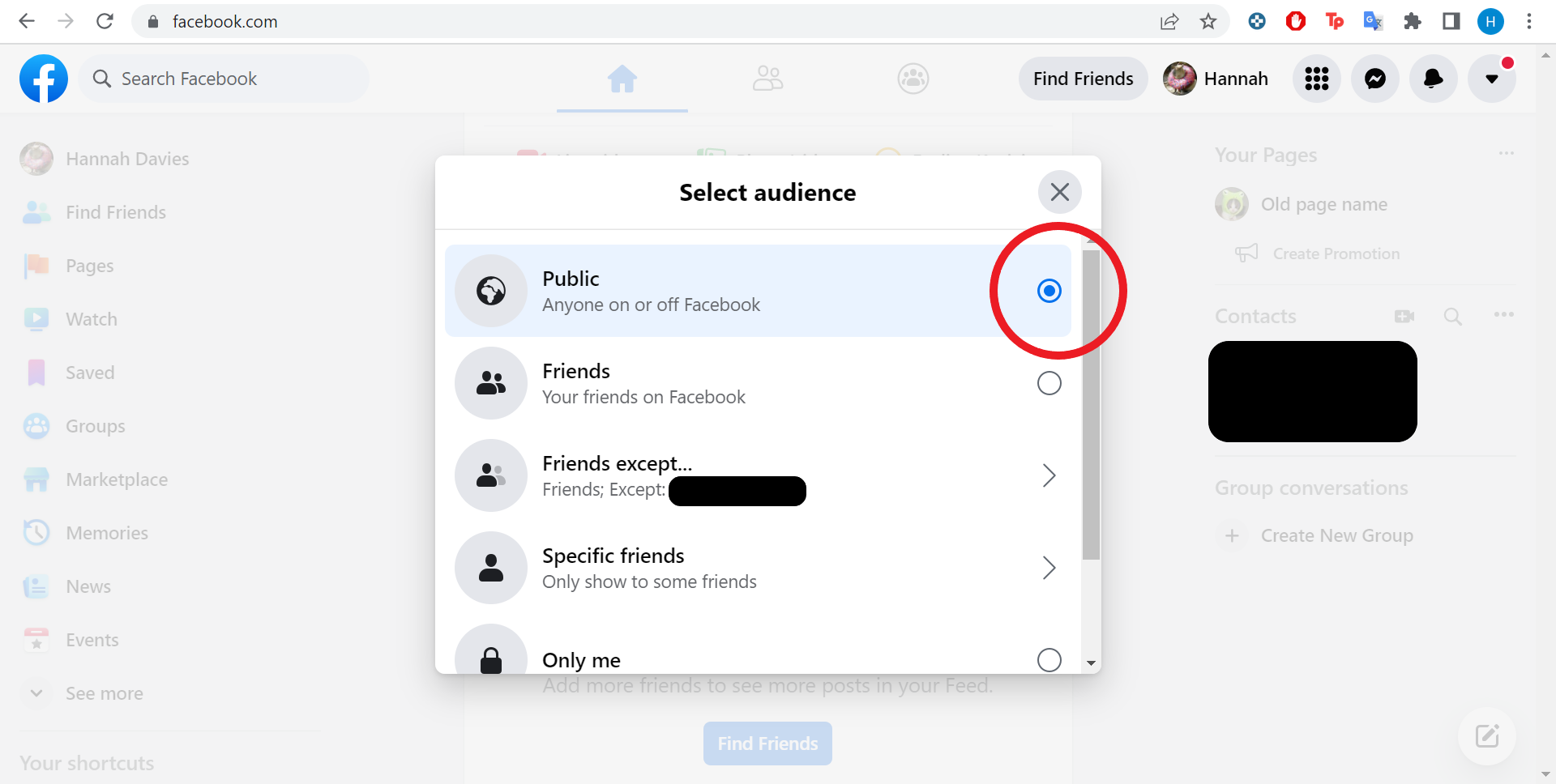
That’s it! You can also select other settings, like Friends, Friends Except, Specific Friends and Only Me.
Troubleshooting
To make sure your posts are public before hitting send, open the Create Post window and click on the grey drop-down menu below your name. Here you can choose between Public, Friends, Private and more.
To make a post private on Facebook, simply follow the same steps as above but click Only Me instead of Public in the final step.
You might like…



The post How to make a post shareable on Facebook appeared first on Trusted Reviews.
from Trusted Reviews https://ift.tt/HZXc4rd
via IFTTT